Formatting Text
Objectives: To
learn to use appropriate text
formatting features e.g. font, size, bold, italic, underline, colour changes.
Lesson Topics:
- Changing
Font Type
- Font
Size
- Changing
Font Style
- Changing
Font Colour

Changing
Font Type
A font is
the typeface of the text you are entering. Changing
the font is a very simple process.
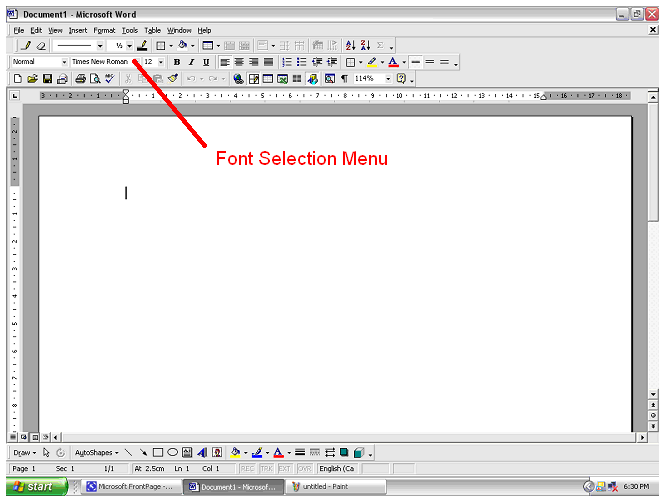
- If you look at the top of your
Microsoft Word window you will see a drop down menu
with the name of a font in it (It will usually say Times
New Roman).
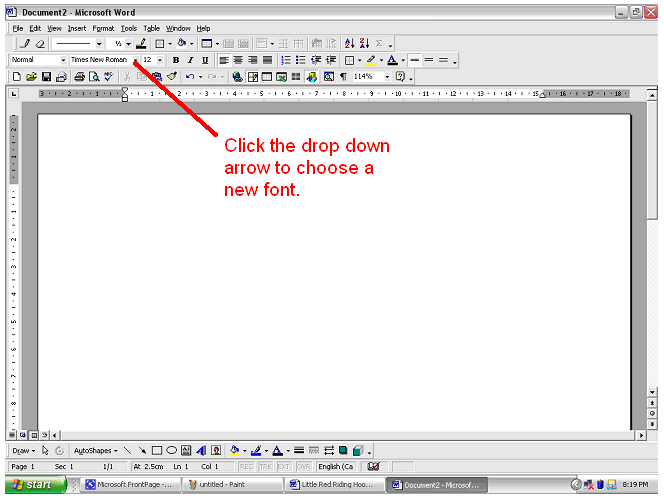
- To change the font click on the drop
down menu arrow and choose any
font which you want.
- Any new text you type will be in the
font you have chosen.
If you wish to change the font of text
you have already typed then:
- Highlight the
text you want to change.

- Click on the drop down arrow to choose a new font from the drop down
menu.

- The highlighted text should now be in
your new font.
Changing Font Size
Changing the size of the font is almost
exactly the same as changing the type of font.
- If you look at the top of your
Microsoft Word window you will see a drop down menu
with the size of a font in it (It will usually say 10
or 12).
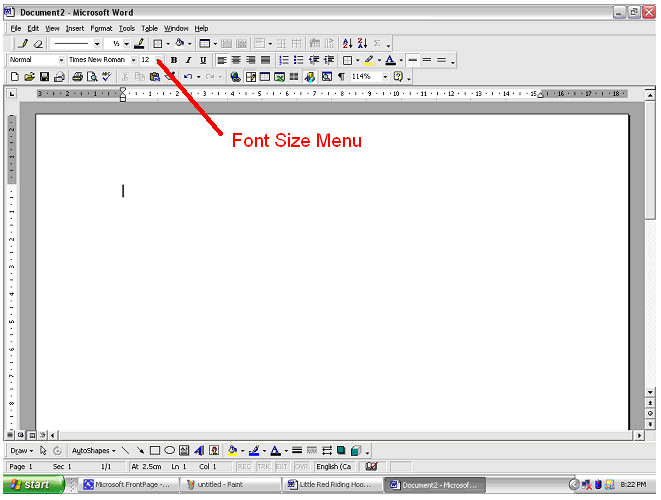
- To change the font size click on the
drop down menu and choose any font size you want.

- Any new text you type will have the
font size you have chosen.
If you wish to change the size of the
font of text you have already typed then:
- Highlight the
text you want to change.
- Choose a new font size from the drop
down menu.
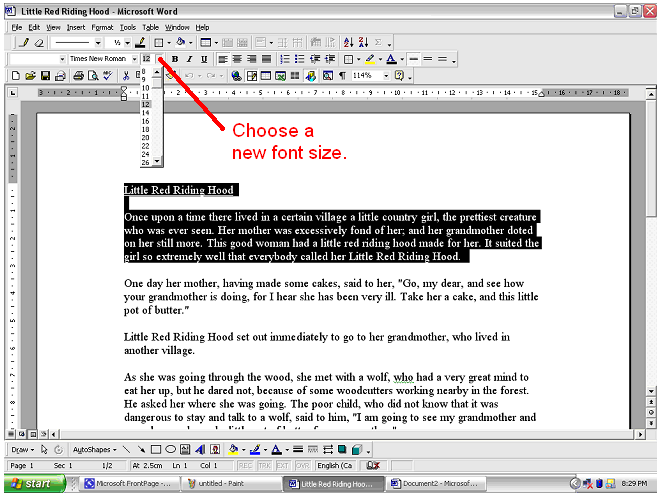
- The highlighted text should now be in
your new font.
Changing
the Font Style (Bold, Italics, and Underlining)
Changing the font style is best done like
this:
- If you look at the formatting tool bar
you will see a box with three letters a B, an I and a U.
Clicking on the B will give you bold face type, the I will
give you italics, and the U will give you underlined words.

If you wish to change the font style of
text you have already typed:
- Highlight the text you want to
change.
- Press the font style button you wish
to
use.

Changing
Font Colour
- Select the text you wish to
change.

- Click on the Drop Down Arrow
by the Font Colour Button.

- Choose the colour you want or
choose More Colours for more choices.

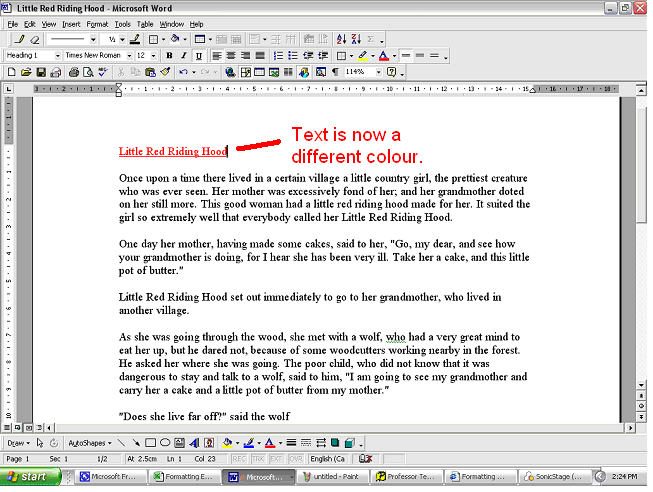
- Your text will now have a new
colour.